Samsung has Dual Messenger, Xiaomi has Dual Apps, OnePlus has Parallel Apps — and stock Android on a Google Pixel has none of them. The feature is not really missing, though: it is a vendor wrapper around something every Android device since 5.0 can do, the work profile. Set one up yourself and you get Dual Apps on any device, for any app you like, not just the short list the manufacturer approved.
This walkthrough is on a Pixel, but nothing in it is Pixel-specific.
Why a work profile gives you Dual Apps
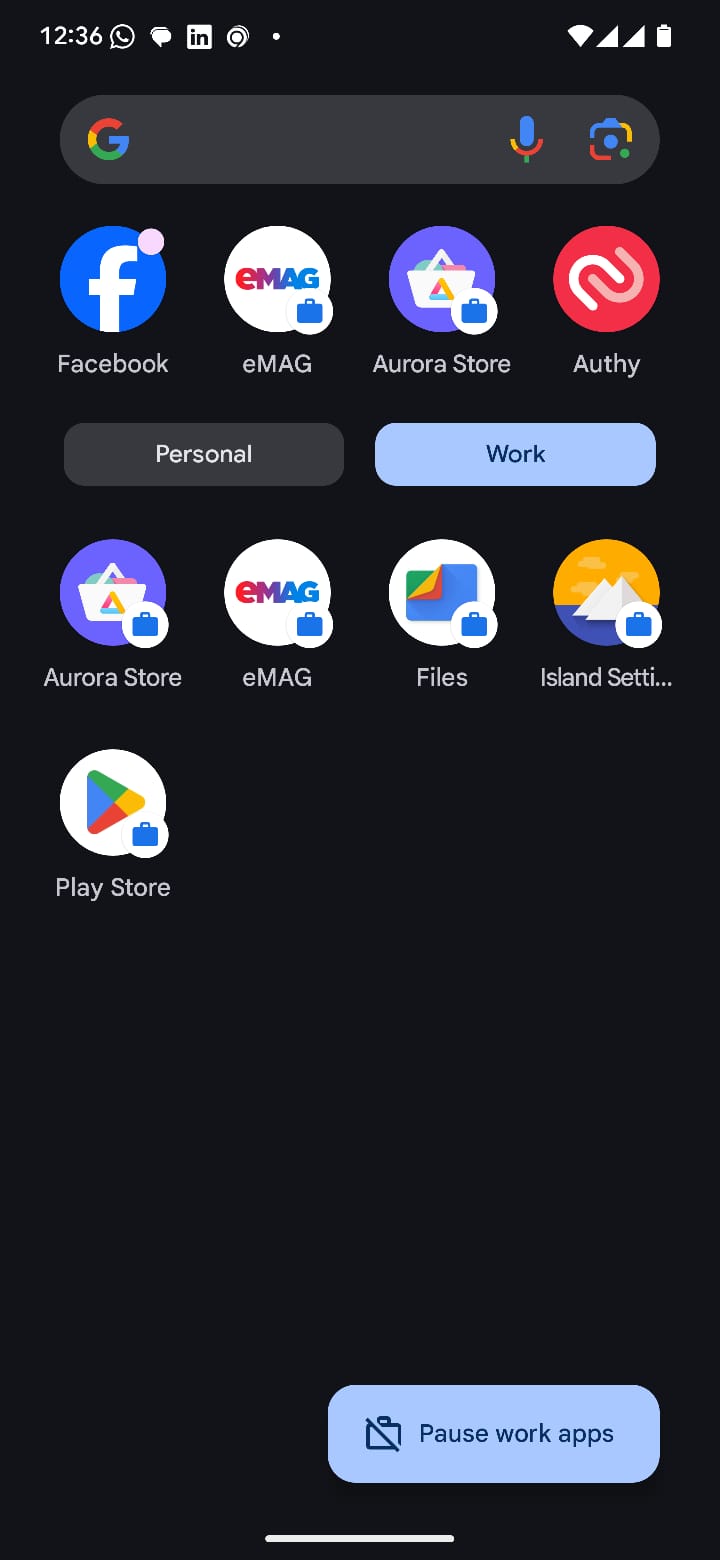
A work profile is a second, fully separate Android user that shares the same lock screen and the same launcher as your normal profile. Apps installed in it run as a different user with a different data directory, so a second WhatsApp, a second Messenger, a second anything can be signed in at the same time as the first. The system marks them with a small briefcase badge so you can tell them apart in the app drawer.
What the vendors ship as Dual Apps is a shortcut to the same mechanism. Doing it by hand costs about ten minutes and lifts the restriction on which apps qualify.
Before you start
You need adb working on your computer — the Android platform tools installed, plus Developer options enabled on the phone and USB debugging turned on inside them. Check the connection before anything else:
adminuser@mac-a01 ~ % adb devices
List of devices attached
1A2B3C4D5E6F	device
If the device shows as unauthorized, accept the debugging prompt on the phone screen.
Step 1. Check the users the phone already has
adminuser@mac-a01 ~ % adb shell pm list users
Users:
	UserInfo{0:Owner:4c13} running
adminuser@mac-a01 ~ %
One user, ID 0. That is the profile you use every day, and every app you have installed so far belongs to it.
Step 2. Create the work profile with Island
Install Island from Google Play and walk through its setup wizard, choosing to create the isolated space. Island is the app that asks Android to provision a managed profile — that is the only thing you need from it here.
Now list the users again:
adminuser@mac-a01 ~ % adb shell pm list users
Users:
	UserInfo{0:Owner:4c13} running
	UserInfo{10: Island :1030} running
adminuser@mac-a01 ~ %
A second user appeared: Island, with ID 10. Check your own ID rather than copying this one — it is usually 10, but not always, and every command below takes it as an argument. Installing into the wrong user ID silently puts the app back in your main profile, which looks like the whole procedure did nothing.
Step 3. Put a store inside the work profile
The work profile starts out nearly empty, and without a store in it you would have to sideload everything. Download the Aurora Store APK from f-droid.org — an unofficial, open-source client for Google Play that works with or without Google Play Services — and install it into user 10:
adminuser@mac-a01 ~ % adb install --user 10 com.aurora.store_68.apk
Performing Streamed Install
Success
adminuser@mac-a01 ~ %
--user 10 is the whole trick. adb install without it targets user 0. The build number in the file name is whatever you downloaded — do not go hunting for that exact one.
You now have a second store, living in the work profile, from which you can install anything:
Step 4. Install any app you want as a second copy
Search for it in Aurora Store inside the work profile and install it there. For anything Aurora cannot find, download the APK on your computer and push it the same way:
adb install --user 10 com.whatsapp_<version>.apk
It appears in the app drawer with the work badge, next to the copy you already had. Sign in with the second account and both run at once.
To confirm which profile an app actually landed in:
# every user that has this package installed
adb shell pm list packages --user 10 | grep whatsapp
adb shell pm list packages --user 0  | grep whatsapp
What you get, and what you give up
Worth knowing before you move an account you depend on into it:
- Notifications work normally, but the work profile can be paused — from the Work tab in the app drawer or a Quick Settings tile. While it is paused, those apps do not run and do not notify. It is easy to pause it by accident and then wonder why messages stopped.
- Storage is separate. The work profile cannot see photos in your personal gallery unless you share them across explicitly.
- Contacts are separate too, so a messaging app in the work profile starts with an empty address book.
- Battery behaviour is the same as any other app; a second profile is not a second Android running.
Removing it again
The whole thing lives in that extra user, so removing the user removes everything inside it:
adb shell pm remove-user 10
This is destructive and there is no undo — every app and every account in the work profile goes with it.
Do not uninstall Island from inside the work profile
Island is the app that owns the managed profile. Removing the copy that lives inside the work profile takes the profile down with it, along with every app and every account in it. If you want to tidy up, remove only the copy in your personal profile, then reboot and confirm the badged apps still launch before you consider it done — and be prepared to redo the setup if they do not. Leaving Island installed costs nothing.
Island's own store listing says the same thing from the other direction: the supported way to remove it completely is Destroy Island in Settings → Scoped Settings → Island first. If the app is already gone and the profile is left stuck half-broken, clear it from Settings → Accounts → Remove work profile, then start the setup over.
If your phone is a OnePlus, you may not need any of this — OxygenOS has the feature built in, and there is a one-command way to add any app to the Parallel Apps space rather than the short list the launcher offers.
